How to Host Virtual Bingo on Zoom
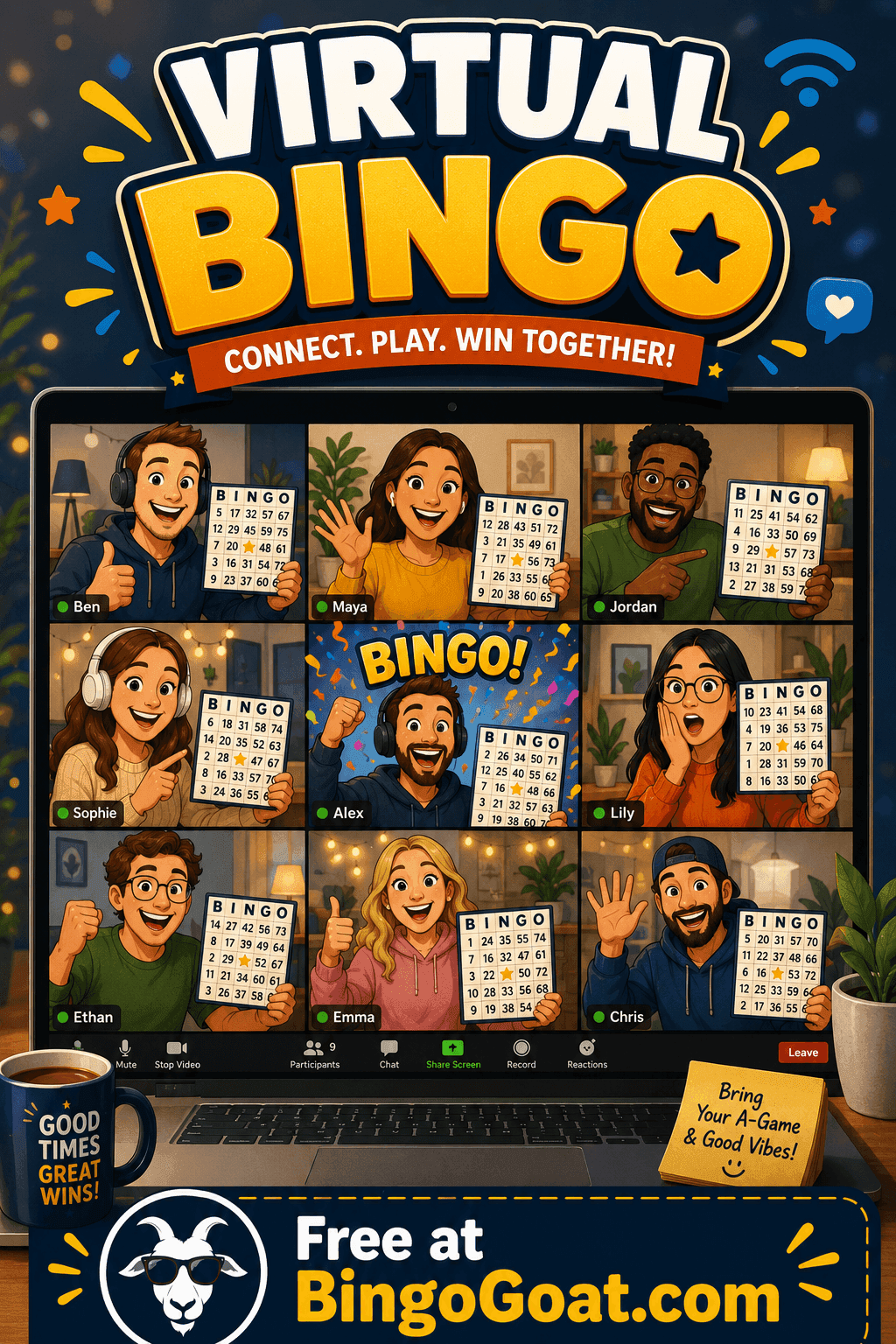
Zoom is great for seeing everyone's faces, but it was never built to run a bingo game. The good news: you don't need it to be. The easiest way to host virtual bingo on Zoom is to let Zoom do what it's good at (live video and audio) and run the actual bingo game in a separate window that everyone joins by link. No screen-sharing scramble, no mailing out paper cards.
Here's exactly how to set it up and run it.
Planning a company team night? See our guide to How to Host a Virtual Bingo Night for Your Company. Raising money for a school or nonprofit? Read How to Host a Virtual Bingo Fundraiser. Just want free group play for any occasion? See Free Online Group Bingo.
How it works: Zoom + a live bingo game
Think of your bingo night as two layers running side by side:
- Zoom handles the live connection, you call numbers out loud, players see your face, and everyone reacts together.
- BingoGoat handles the game, it generates a unique card for every player, tracks called numbers, and verifies wins automatically.
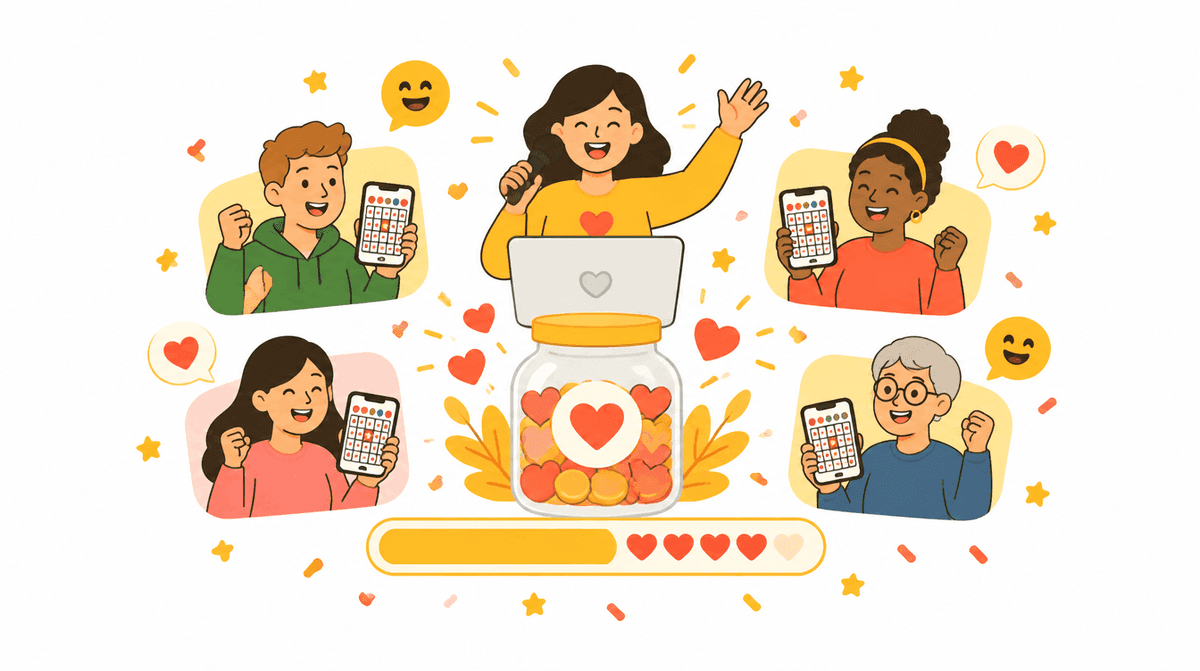
Players keep Zoom open in one window and their bingo card open in another (or Zoom on their computer and the card on their phone). You stay on the Zoom call the whole time and simply call the game as it appears on your screen.
This split is what makes it effortless. You're never trying to force Zoom to do something it can't.
Step 1: Schedule your Zoom call
Set up your Zoom meeting as you normally would and send the invite to your group. Pick a time, plan for roughly 45–60 minutes, and decide how many rounds you'll play. That's the entire Zoom side of the setup, nothing special required.
Step 2: Create your bingo game
Before the call, create your game so the join link is ready to share:
- Create a free game on BingoGoat and choose your style, classic numbers or custom words tailored to your group.
- Customize the cards if you'd like (themes, colors, a free space).
- Launch the game and copy the join link or game code.
Each player who joins gets their own randomized card automatically, so everyone is playing a real, unique board, not a screenshot.
Step 3: Share the join link during the call
When everyone's on Zoom, drop the join link or game code into the Zoom chat and read it out loud. Players click it (or type the code), enter their name, and they're in. No app to install, no account to create, they join as guests in seconds, which keeps everyone playing instead of troubleshooting.
Tip: tell players to open the card on their phone so they can keep Zoom full-screen on their computer. That's the smoothest setup.
Step 4: Call the game live
Now you just host. As you advance the game, call each number or word out loud over Zoom so players can mark their cards. BingoGoat keeps the called numbers visible on your screen and handles the bingo verification, so you can focus on the energy of the room rather than tracking who's won.
When a player calls bingo, you'll see their card to verify the win, confirm it on screen, celebrate it on the call, and move to the next round.
Step 5: Keep the energy up between rounds
Between rounds, chat with your players, hand out a prize, or theme the next round differently. The combination of live video and a real shared game is what makes a Zoom bingo night feel like an actual event instead of just another video call.
Tips for hosting bingo on Zoom
- Do a dry run. Join your own game from a second device so you know exactly what players will see and can talk them through it.
- Use a co-host. One person calls the game on Zoom, the other watches the chat and helps anyone who's slow to join.
- Two screens beats one. Encourage players to use Zoom on a computer and their bingo card on a phone, no toggling between windows.
- Call clearly and pause. Give players a beat to find each number on their card before moving on.
Frequently asked questions
How do players join the bingo game on Zoom?
You share a link or game code in the Zoom chat. Players click it, enter their name, and their card loads in their browser, no app or signup needed.
Do players need a second device?
No, but it helps. They can run Zoom and their bingo card on the same device in two windows, or keep Zoom on the computer and the card on their phone for the smoothest experience.
Is it free to host bingo on Zoom?
Yes. You can create and host a bingo game for free and run it alongside your normal Zoom call.
Can I run bingo on Google Meet or Microsoft Teams too?
Absolutely. The same setup works on any video platform, the bingo game runs independently, so it doesn't matter which call you're on.
How many people can play?
You can host a game for a small group for free, with larger groups supported as your event grows.
Start your Zoom bingo night
You already know how to run a Zoom call, adding bingo just takes one link. Create your free game on BingoGoat, drop the join link into your next Zoom chat, and turn an ordinary video call into a game night everyone actually enjoys.